If you've completed your MAUI development on Windows and it runs perfectly on an Android phone or tablet, you might be eager to try running your MAUI app on an iPhone or iPad to see just how capable MAUI's cross-platform functionality truly is.
This blog will teach you how to achieve this goal with minimal influencing factors. (One of the most common influencing factors is that if you want to use Windows to connect to Mac for debugging, you may encounter issues such as version mismatches, slow network connections, or even failure to connect.)
Generally speaking, completing the following steps is sufficient:
1. Install Xcode
2. Deploy an blank app to your iPhone/iPad using Xcode
3. On the MAUI project, configure the same Bundle Id as the Xcode project
4. Deploy MAUI project to mobile phone
The most crucial points are the second and third, as they are caused by mechanism issues related to Apple's iOS system.
We will not introduce how to install Xcode on Mac here, as you can easily find many tutorials online, so we will start directly from point 2.
1. Install Xcode
Skip
2. Deploy an blank app to your iPhone/iPad using Xcode
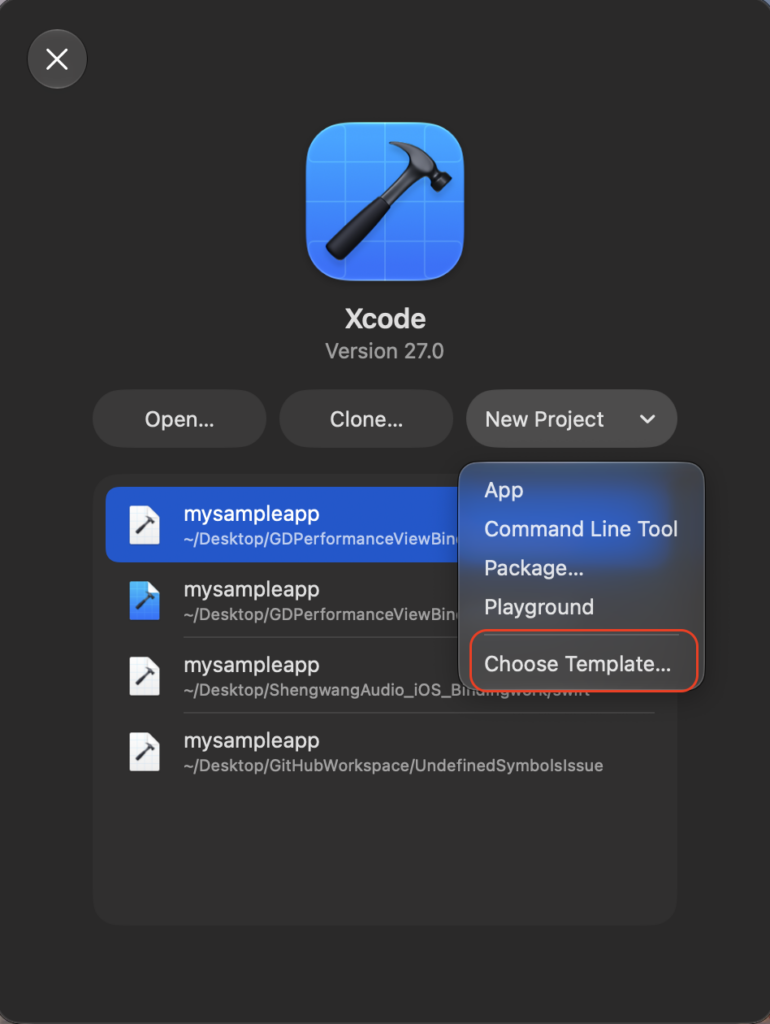
Open xcode, select 'New Project' and choose 'Choose Template':
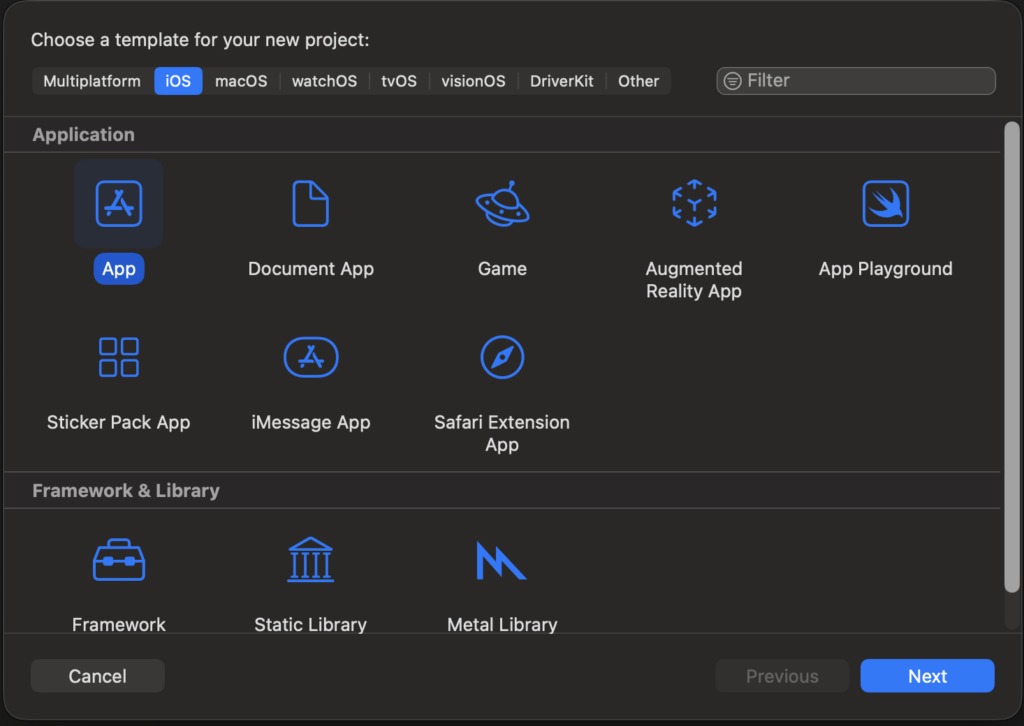
Choose to create an iOS app
Fill in the project name and Bundle Id
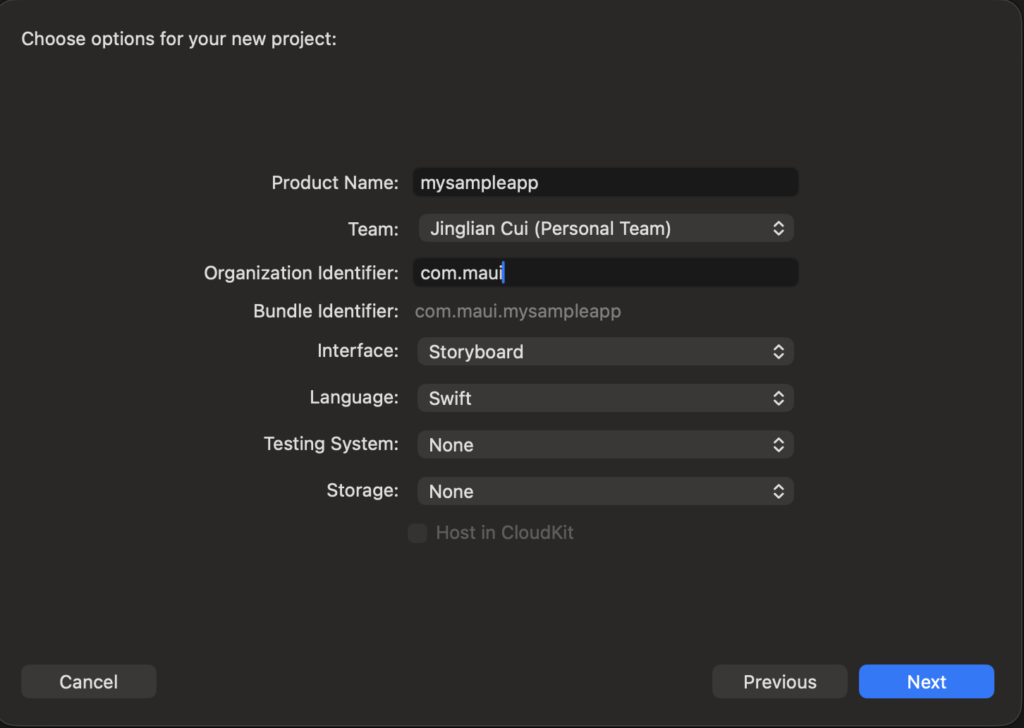
Confirm Bundle Id after creating the project
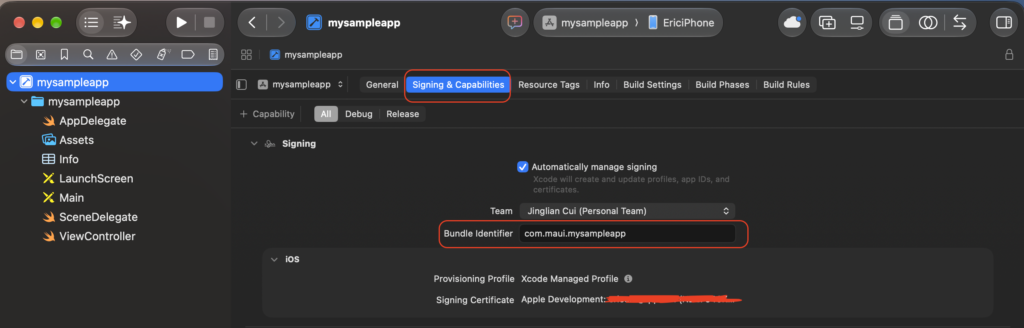
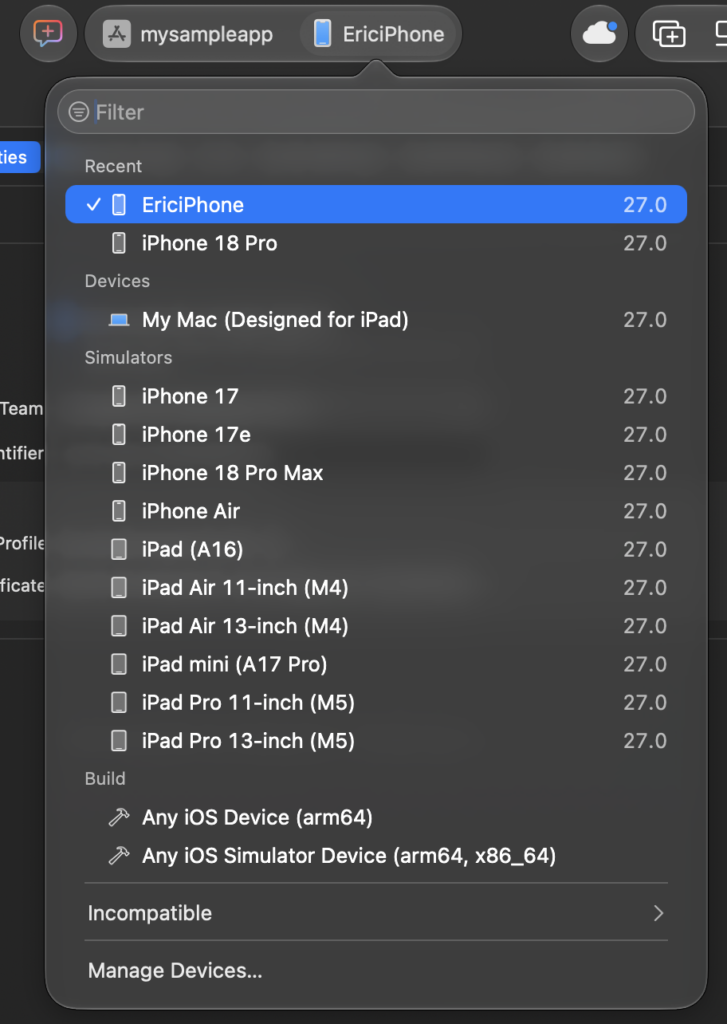
Choose which iOS device to run on, here I have selected my phone that is already connected to the computer
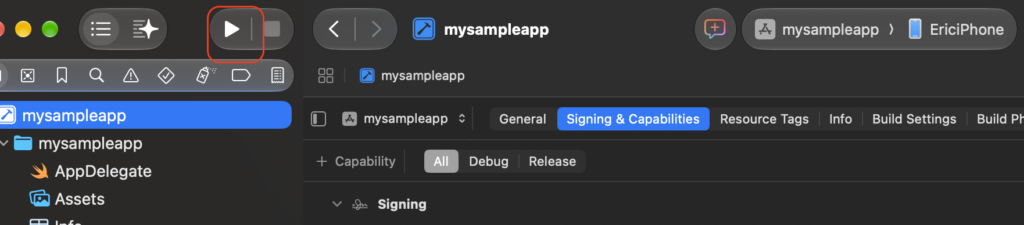
Click the debug button to start deploying to the phone
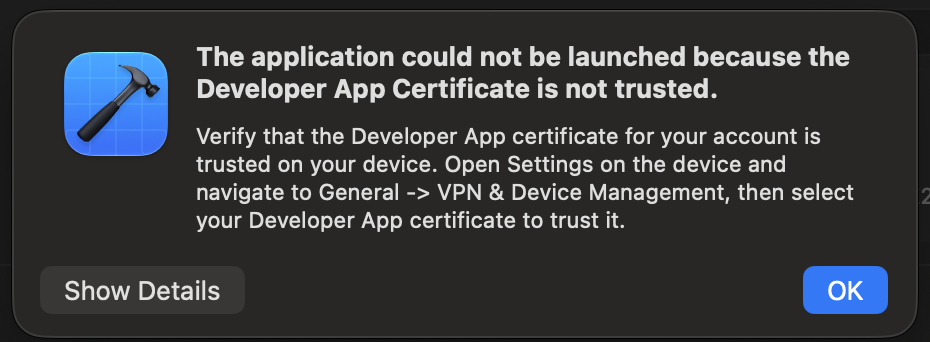
After waiting for the XCode compilation and deployment time, if you see the pop-up message below, it indicates that the blank app has been deployed to the iPhone, but due to an issue with Apple's mechanism, XCode was unable to start debugging.
At the same time, there will also be a pop-up prompt on the phone saying 'untrusted developer'
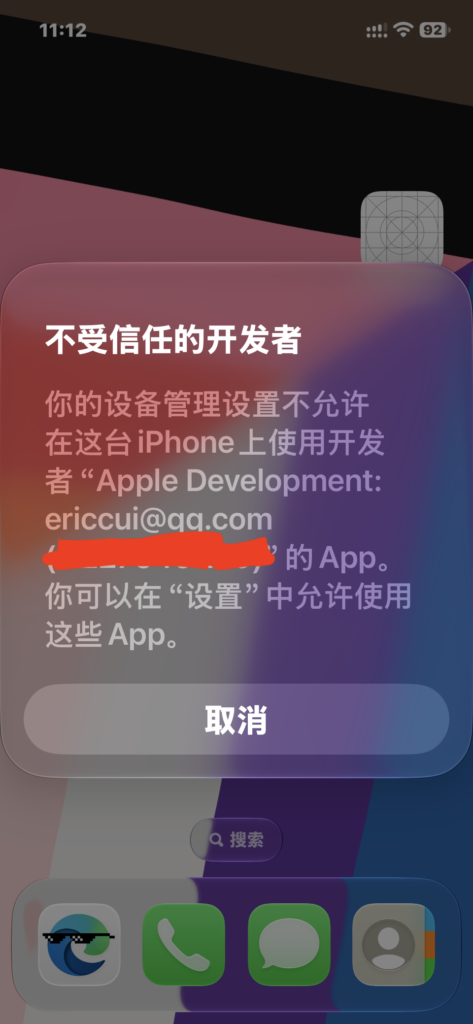
Follow the prompts to enter the settings
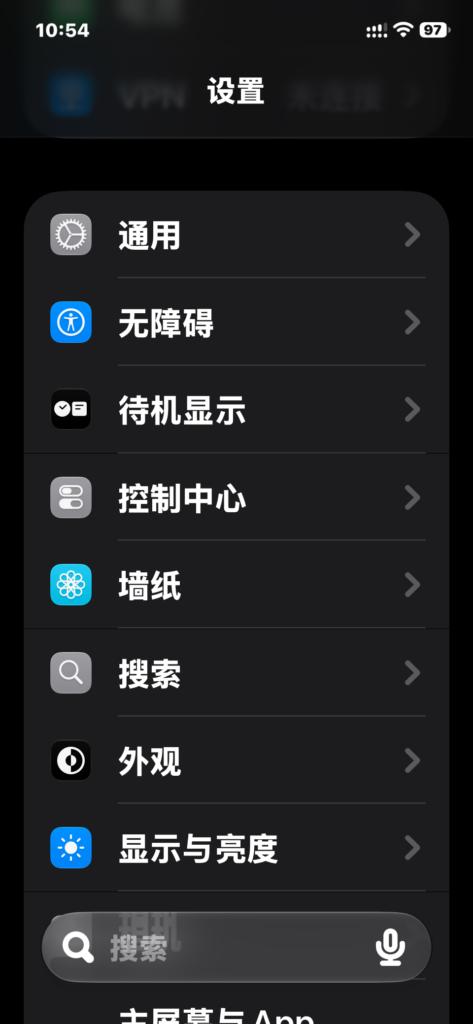
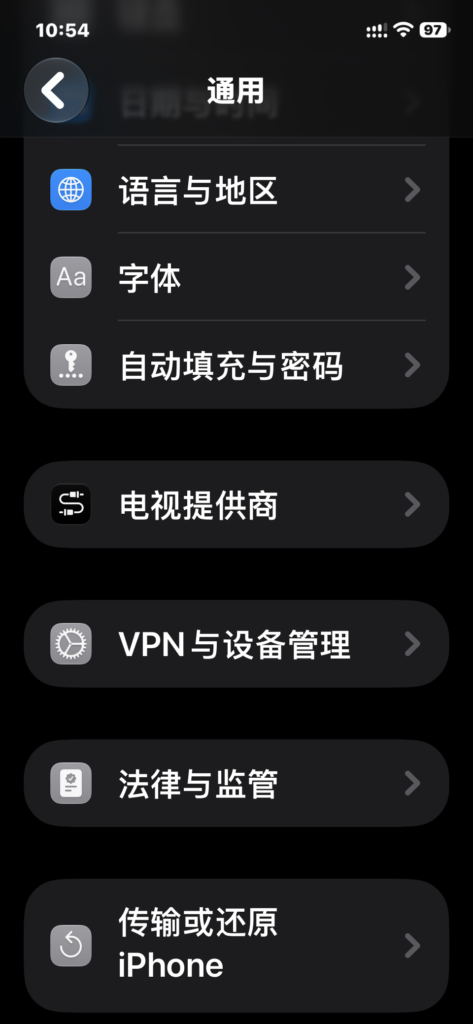
Enter VPN and device management
Click on the untrusted button
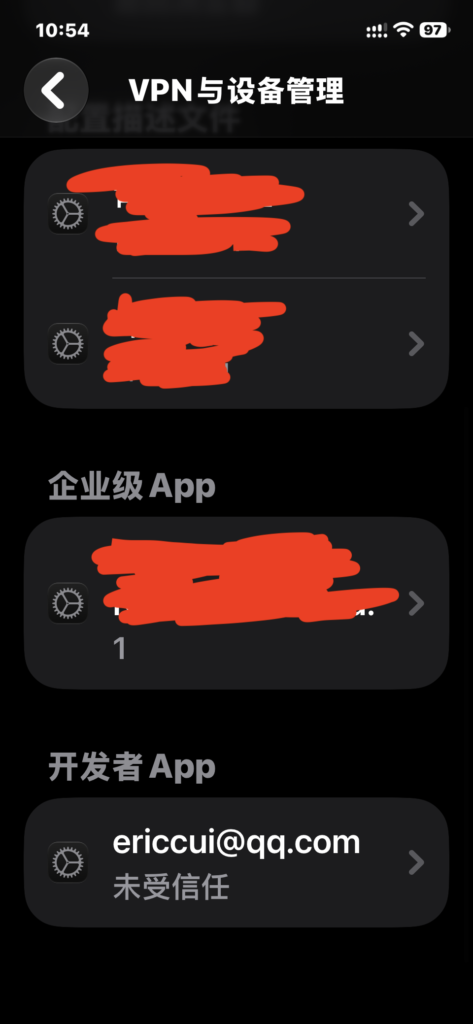
Click on trust
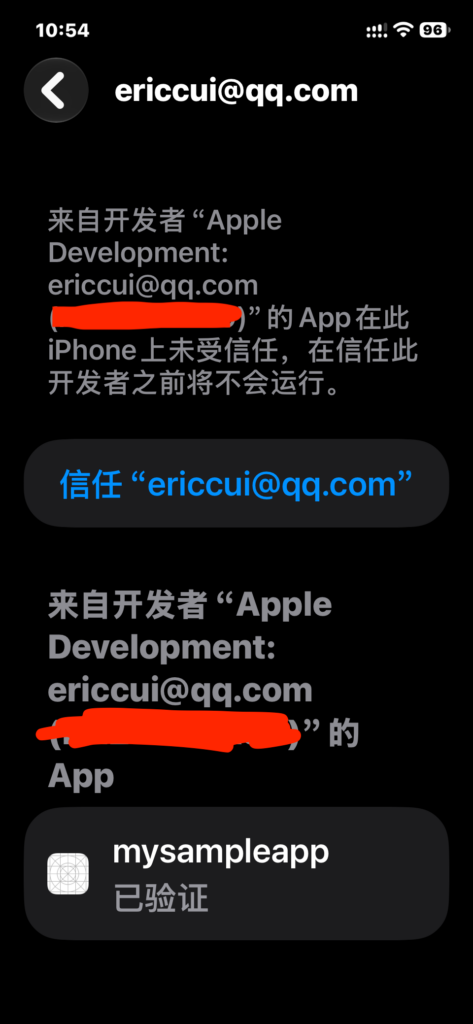
Click Allow
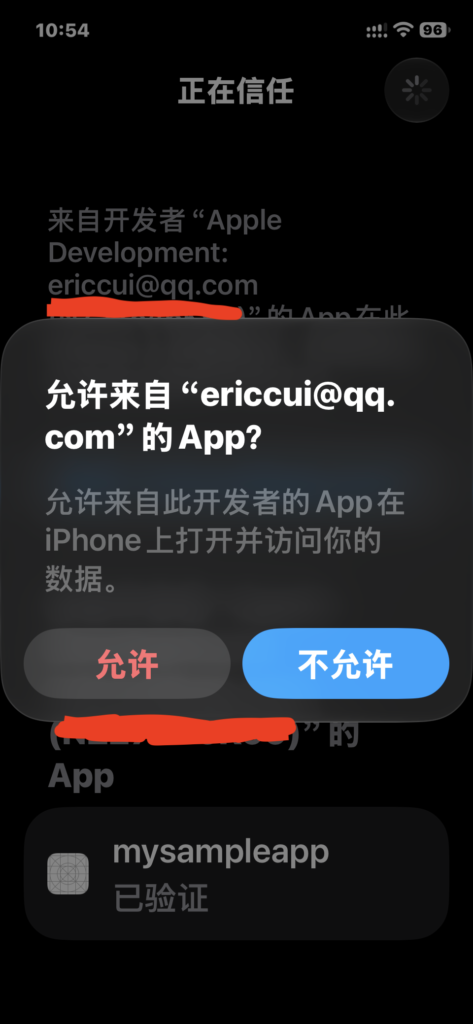
3. MAUI project configuration has the same Bundle Id as the Xcode project
Edit the value ofin the. csproj file to ensure it matches the value of the bundle id in the Xcode project.
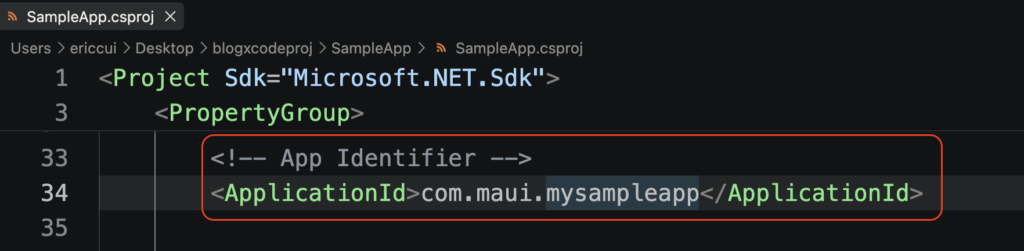
<!-- App Identifier --><ApplicationId>com.maui.mysampleapp</ApplicationId>4. Deploy MAUI project to mobile phone
Select iOS and the device to deploy to at the bottom of VSCode

Click the run button in the upper right corner of VSCode to start compiling and deploying to your phone

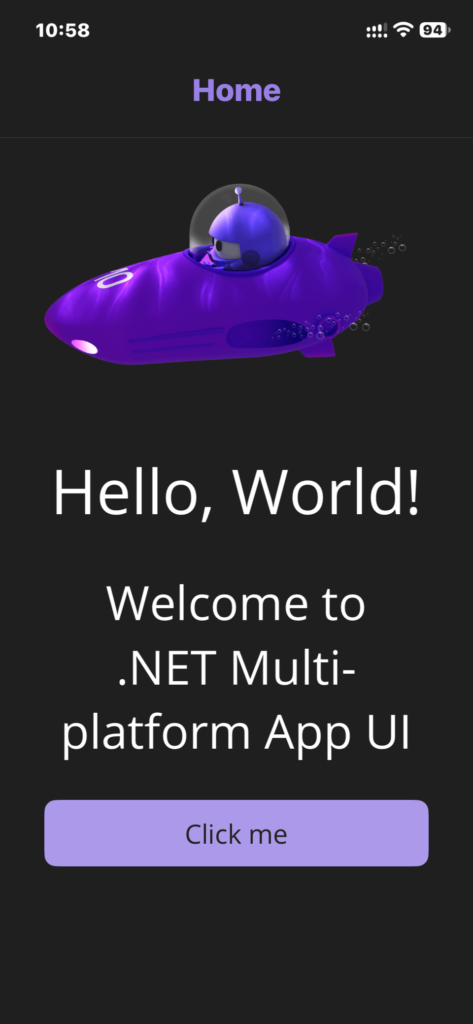
Finally, the native XCode deployed application will be replaced by Dotnet MAUI application
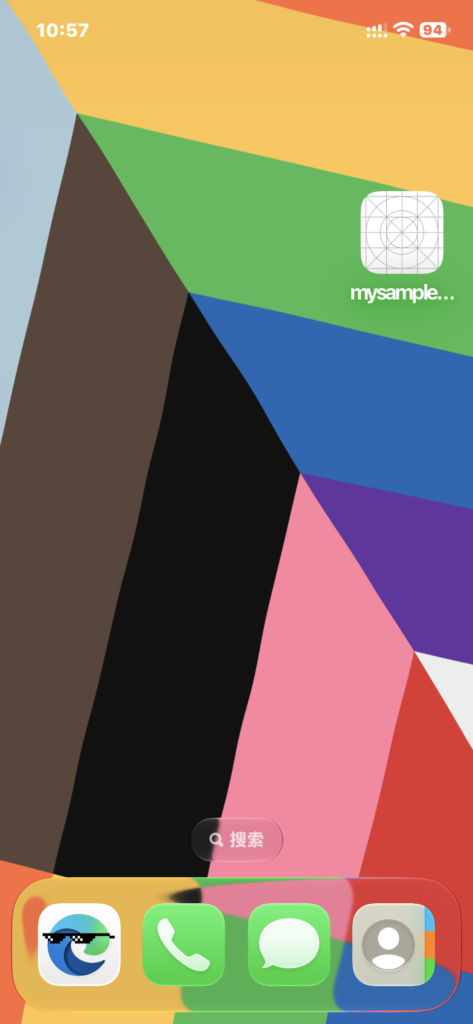
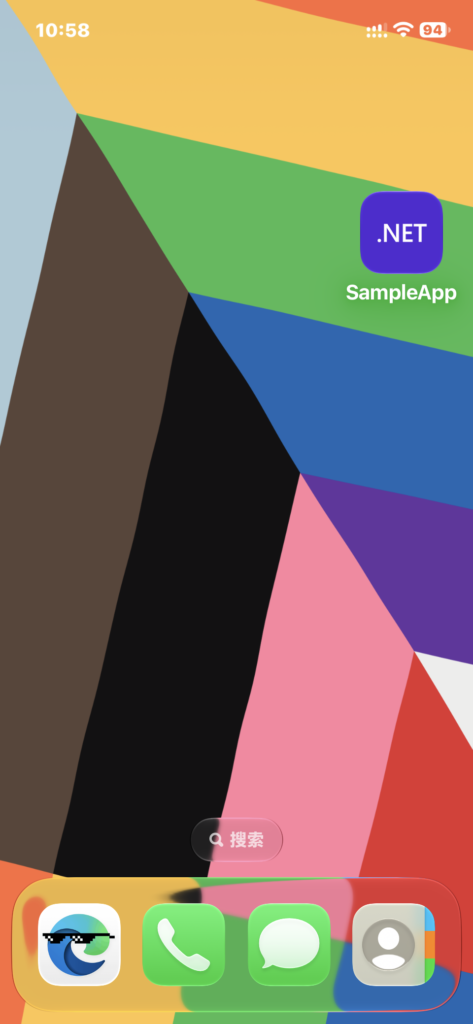
Dotnet MAUI app successfully runs on mobile phone
公众号 Maui Library
知乎 Maui Library
群: 521288080 313308215
Leave a Reply